How Do I Pay My Bill?
Castlewood Water & Sanitation District Online Payment Portal Instructions
Step 1: Log In to the Payment Portal
- Visit the District payment portal:
Castlewood Water & Sanitation District
https://billingservices.cliftonlarsonallen.com/services/utility12 - Click Log In.
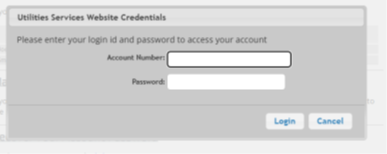
- Enter your credentials:
Example
Billing Address: 1234 Street St, Centennial, CO 80111
Temporary Password: 1234
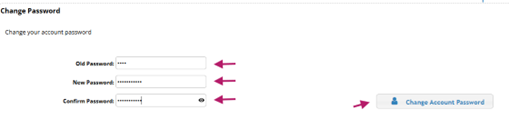
If this is your first time logging in, you will be prompted to change your password:
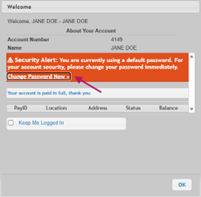
- Enter your temporary password.
- Create and confirm a new password.
- Click Change Password.
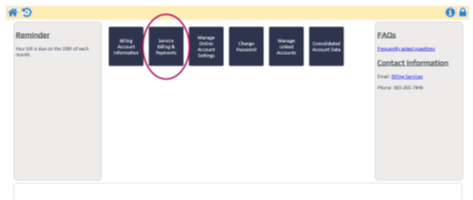
Step 2: Access Billing & Payments
From the main menu, select Service Billing & Payments to view your account(s).
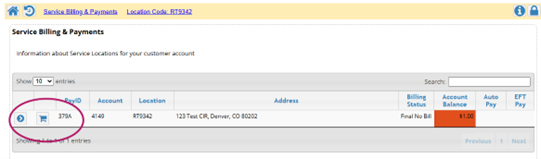
Step 3: Select Account(s) to Pay
For single or multiple accounts, click the shopping cart icon next to each account you wish to include in your payment.
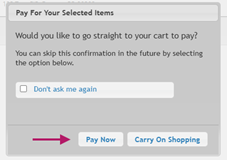
Step 4: Choose a Payment Action
- When prompted, select Pay Now to continue.
- To add more accounts or charges, select Carry On Shopping.
- You may access your cart at any time using the shopping cart icon at the top right of the screen.
Step 5: Review or Adjust Payment Amount (Optional)
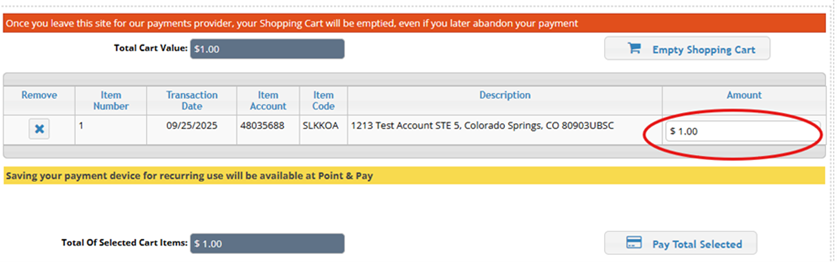
- To pay the full balance, leave the amount unchanged.
- To make a partial payment, enter the desired amount in the Amount field.
- Click Pay Total Selected to continue.
Step 6: Continue to the Payment Provider
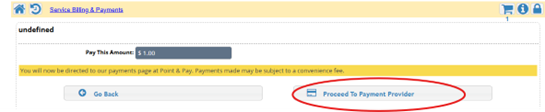
- Click Proceed to Payment Provider.
- You will be redirected to a secure third‑party payment site.
Transaction Fee
Important notice: Please note if you choose to pay using Electronic Check (ACH), a $1.00 transaction fee will be added to your transaction. For payments made by Credit Card or Debit Card, a 3% transaction fee will be charged based on the total payment amount.
Step 7: Enter Payment Information
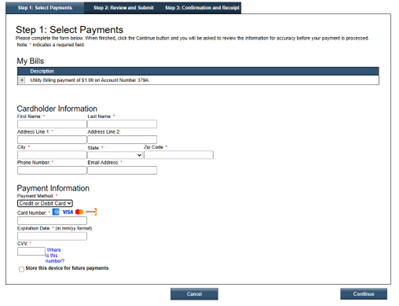
Complete all required fields, including:
- Cardholder name and contact information.
-
Payment method:
- Electronic Check (ACH)
- Credit Card or Debit Card
For Electronic Check payments, you will need:
- Bank routing number.
- Bank account number.
- Account type (Checking or Savings)

Step 8: Set Up Automatic Payments (Optional)
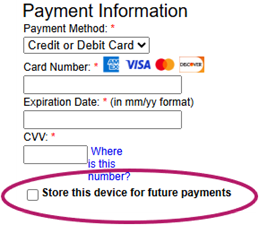
- To enroll in automatic recurring payments, check the box labeled: “Store this device for future payments.”
- By selecting this option, you authorize automatic monthly withdrawals for the full balance due from your chosen payment method on the account’s billing due date.